Appearance
How to configure movement sounds
Use this guide to connect MotionMovementSoundComponent to surface-based footstep, jump, and landing sounds.
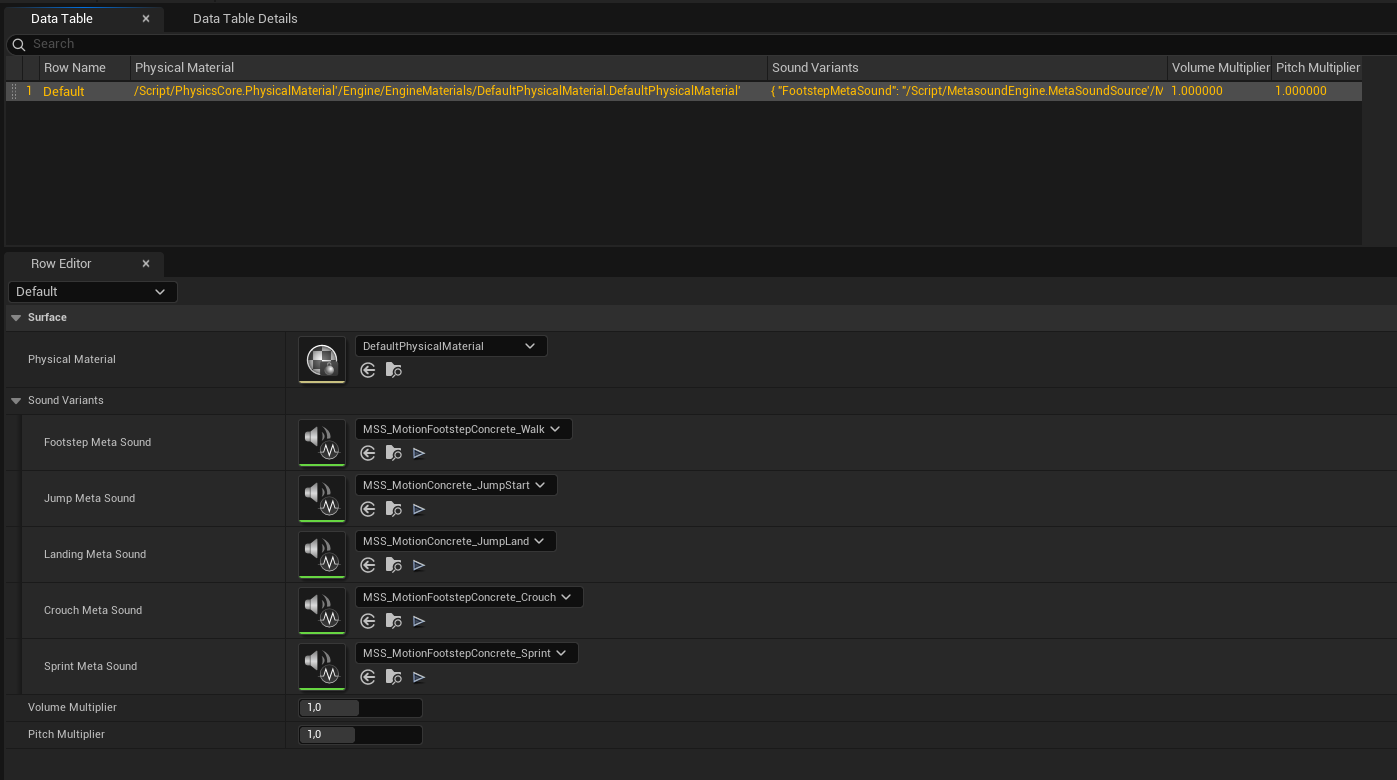
Create the DataTable
- Create a DataTable with the
FMotionSurfaceSoundDataRowrow structure. - Add a
Defaultrow for fallback sounds. - Add rows for project surfaces such as concrete, wood, grass, or metal.
- Assign MetaSound sources for the movement actions each surface supports:
FootstepMetaSound,CrouchMetaSound,SprintMetaSound,JumpMetaSound, andLandingMetaSound. - Set volume and pitch multipliers for each row.
The component selects the DataTable row from the detected physical material. If no material-specific row matches, it uses DefaultSurfaceSoundRowName.
Configure the movement sound profile
- Add
MotionMovementSoundComponentto the character. - Duplicate
DA_MotionMovementSoundProfile_Default_v2_0_0fromPlugins/MotionCore/Content/Motion/Profiles/v2_0_0into your project content. - Assign your DataTable to
SurfaceSoundDataTableon the duplicated profile. - Set
DefaultSurfaceSoundRowNameto the fallback row, usuallyDefault. - Enable surface detection when physical materials must select sounds.
- Enable 3D audio for spatialized footsteps from the attached audio component of the character.
- Assign a
FootstepAttenuationasset if you want specified distance falloff, spatialization, or occlusion settings. If 3D audio is enabled and this field is empty, Motion uses the default Unreal attenuation behavior. - Assign the duplicated profile to the
Profileproperty of the component.
Tune speed modulation
Edit SoundSettings on the duplicated profile:
| Field | What it controls |
|---|---|
BaseVolume | Starting volume before speed, surface, and master multipliers |
SpeedVolumeMultiplier | Extra volume added as platform-relative speed approaches MaxWalkSpeed |
BasePitch | Starting pitch before speed and surface multipliers |
SpeedPitchMultiplier | Extra pitch added as platform-relative speed approaches MaxWalkSpeed |
VolumeVariation | Random volume offset applied when MetaSound-triggered movement sounds play |
PitchVariation | Random pitch offset applied when MetaSound-triggered movement sounds play |
GetSpeedBasedVolume() and GetSpeedBasedPitch() expose the current calculated values to Blueprint. SetMasterVolumeMultiplier() scales future movement sound volume and clamps the value from 0.0 to 2.0.
To prevent speed-based volume or pitch changes, set the two speed multipliers to 0.0.
Configure sprint and crouch variants
Footstep notifies do not force a sprint or crouch sound by name. When a footstep notify fires, the component reads the active Motion state tags of the owning character. It selects SprintMetaSound first when Motion.State.Sprinting is present. It selects CrouchMetaSound next when Motion.State.Crouching is present. For other conditions, it uses FootstepMetaSound.
Trigger sounds from animation
Add Animation Notifiers at the frames for sound playback:
| Movement moment | Function |
|---|---|
| Foot contacts ground | TriggerFootstepSound() |
| Jump starts | TriggerJumpSound() |
| Landing impact | TriggerLandingSound() |
| Known string alias | TriggerMovementSound() |
The component handles surface detection, state-based MetaSound selection, speed modulation, random variation, surface row multipliers, and 3D or 2D playback when the notifier fires.
TriggerMovementSound() accepts the native aliases Footstep, Walk, Crouch, Sprint, Run, Jump, Landing, and Land. It routes those names to the footstep, jump, or landing paths.
Use PlayModulatedSound() only for direct playback of a supplied USoundBase from Blueprint or C++. Supply the specified volume and pitch multipliers. The function applies the active master volume multiplier. It does not do surface lookup, speed modulation, random variation, or sprint/crouch variant selection.
Reload DataTable changes during tests
Call ReloadSurfaceSoundDataTable() after row edits during runtime tests or editor-callable workflows. The component clears its cached surface rows and reloads the assigned SurfaceSoundDataTable. Then, it validates the FMotionSurfaceSoundDataRow table type.
For the full API reference, see MotionMovementSoundComponent.