Skip to content

Quick Start Guide

This guide covers the essential steps to get started with Motion 2.0 Preview 2, featuring universal compatibility with ANY ACharacter subclass and a modular component architecture.

Universal Compatibility

Motion 2.0 works with ANY ACharacter subclass - no inheritance requirements! Add Motion components to your existing characters or use the pre-made example character.

Setup

  1. Add the Plugin to Your Project

    INFO

    For the Preview, I recommend installing the Plugin into your project directly, as you're more likely to want to edit its source code.

    • Copy the MotionCore folder to your project's Plugins directory
    • Restart the Unreal Editor
    • Enable the plugin in Edit → Plugins → Motion Core
  2. Configure Your GameMode (Required for GAS)

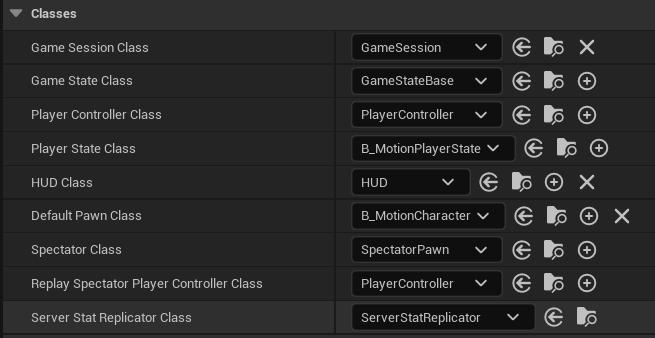
    • Set your GameMode's PlayerStateClass to AMotionPlayerState::StaticClass()
    • This provides the Gameplay Ability System integration needed for Motion

INFO

The final version of Motion 2.0 will allow you to use your own PlayerState. The MotionPlayerState just ensures that you have a PlayerState with GAS.

  1. Load the Demonstration Map
    • Open the default demonstration map at Plugins/MotionCore/Content/Motion/Maps/Default

Using the Pre-made Character

Find the Demo Character

INFO

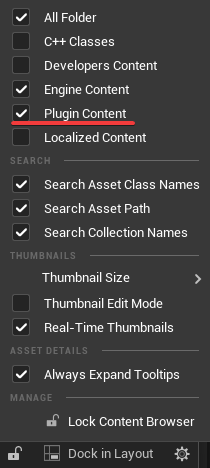
If you have not copied Motion into your project, and instead use the version, as-is, from the launcher, you may have to enable "Show Plugin Content" first.

  • Locate B_MotionCharacter in Plugins/MotionCore/Content/Motion/Blueprints
  • This character demonstrates all Motion components pre-configured
  • Drag it into your level or set it as the default pawn in your GameMode

Preview

The blueprint shown in B_MotionCharacter is not final and is likely to change before the release of 2.0. It acts as simple example on how to register the necessary inputs and components. I invite you to implement Input, ASC registration in whatever way works for your project!

Play the Demo

Press Play to test the character with all movement components:

Basic Controls:

  • WASD: Movement
  • Space: Jump
  • Shift: Sprint
  • Ctrl: Crouch
  • Mouse: Look around

Known Issue

The camera collision prevention is not functional in Preview 2.

Exploring Pre-made Components

The B_MotionCharacter includes these pre-configured C++ components:

Movement Components

  • MotionWalkComponent: Base walking speed and acceleration management
  • MotionSprintingComponent: Sprint mechanics with stamina management
  • MotionCrouchingComponent: Smooth crouching with collision detection
  • MotionJumpComponent: Enhanced jump mechanics with landing detection

Support Components

  • MotionCameraComponent: First-person camera with camera animation curves
  • MotionBreathingComponent: Camera animation when standing still
  • MotionMovementSoundComponent: Surface-aware footsteps and movement audio

GAS Integration

  • MotionAttributeSet: Movement attributes (speed, acceleration, etc.)

Network Features

  • Test with multiple players: Play -> Number of Players: 2
  • Select Play as Client in Net Mode to test client-side prediction
  • Movement states properly replicate across clients

Adding Motion to Your Own Character

Motion 2.0's universal compatibility means you can add Motion components to ANY existing ACharacter:

Option 1: Blueprint Setup

  1. Open your existing character Blueprint
  2. Add Motion components from the Components panel:
    • Search for Motion to see all available components
    • Add the components you need (Walk, Sprint, Crouch, etc.)
  3. Configure Enhanced Input bindings to trigger abilities
  4. Motion components automatically find and integrate with your CharacterMovementComponent

Option 2: C++ Setup

cpp
// In your character constructor
MotionWalkComponent = CreateDefaultSubobject<UMotionWalkComponent>(TEXT("MotionWalk"));
MotionSprintComponent = CreateDefaultSubobject<UMotionSprintingComponent>(TEXT("MotionSprint"));
MotionCameraComponent = CreateDefaultSubobject<UMotionCameraComponent>(TEXT("MotionCamera"));
// Add other components as needed

Configure Input Bindings

Motion uses Enhanced Input with Gameplay Abilities:

  1. Create Input Actions for movement abilities or use the ones that ship with Motion.
  2. Call Add Mapping Context on the EnhancedInput of your player controller.
  3. Use Bind{ComponentName}Input to bind inputs

Customization

Adjust Movement Parameters

Each Motion component exposes properties for customization:

  • Sprint Walk Speed Modifier: Adjust sprint speed relative to walk speed
  • Crouch Walk Speed Modifier: Control movement speed while crouched
  • Jump Velocity Modifier: Modify jump height

Camera Curves

The MotionCameraComponent uses curves for procedural effects:

  • Location curves for camera position offsets
  • Rotation curves for camera angle adjustments
  • Access via MotionCameraComponent->Add{...}) functions

Surface Sounds

Configure the MotionMovementSoundComponent:

  • Edit DT_MotionMovementSounds DataTable for surface-specific sounds
  • Supports MetaSound integration for dynamic audio

Next Steps

Create Custom Abilities

  • Design new movement abilities using the Gameplay Ability System
  • Create Gameplay Effects to modify movement attributes
  • Implement custom input bindings for your abilities

Extend Components

  • Inherit from Motion components to add custom behavior
  • Override virtual functions for specialized logic
  • Add new curves for unique camera effects

Optimize for Your Project

  • Remove unused Motion components to reduce overhead
  • Configure logging verbosity: log LogMotionCore Verbose

Test Multiplayer

  • Enable dedicated server mode for production testing
  • Monitor replication with showdebug net
  • Validate attribute synchronization across clients

Troubleshooting

Common Issues

Character doesn't move:

  • Ensure GameMode uses AMotionPlayerState
  • Check that Motion components are added to your character
  • Verify Enhanced Input is configured

GAS not working:

  • Confirm Gameplay Abilities plugin is enabled
  • Check that AbilitySystemComponent is initialized
  • Verify attributes are properly granted

Camera issues:

  • Ensure MotionCameraComponent is attached to character
  • Check curve assets are properly referenced

Debug Commands

log LogMotionCore Verbose       // Enable detailed logging
showdebug abilitysystem         // View GAS state

Learn More


Need Help?

Join the community Discord for support!

Motion - Advanced First Person Character Controller