Appearance
Get started
Use this procedure to install Motion 1.6 and enable it in an Unreal Engine project.
INFO
Join the Discord or send an email to [email protected] for purchase verification and support-channel access.
Install Motion in Unreal Engine
- Open the Library tab in the Epic Games Launcher.
- Find Motion and select the install button.
- Select a supported Unreal Engine version.
- Install Motion.
Motion 1.6 supports these Unreal Engine versions:
- Unreal Engine 5.3
- Unreal Engine 5.4
- Unreal Engine 5.5
Create a project
TIP
Add an empty C++ class to a Blueprint-only project before you change Motion C++ code. Unreal then generates the necessary Visual Studio solution.
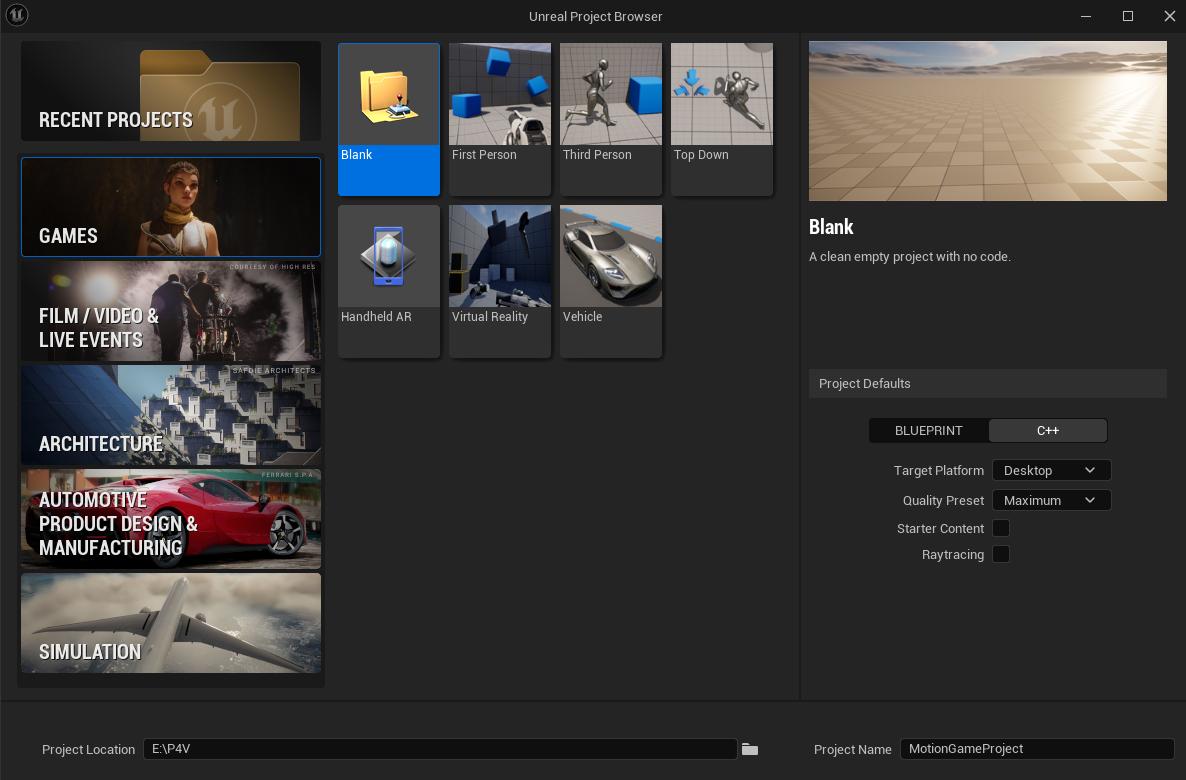
- Open Unreal Editor.
- Select
Games > Blank. - Select C++ in the project defaults.
- Select Create.
- Wait for Unreal Editor to create and open the project.
Add Motion to the project
- In Unreal Editor, select
Settings > Plugins. - Find
MotionCore. - Enable the
MotionCoreplugin. - Restart Unreal Editor if it requests a restart.
- Open the project again.

Adjust the near clip plane
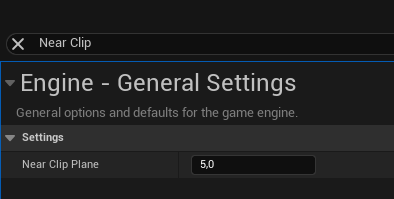
Set Near Clip Plane to 5.0 for correct camera collision prevention.
- Open Project Settings.
- Find
Near Clip. - Set
Near Clip Planeto5.0.
Add or create a Motion character
Choose one procedure:
Optional C++ setup
Add MotionCore to PublicDependencyModuleNames before you use Motion C++ types in project code.