Appearance
Create a Motion character
Use this procedure to create a Motion 1.6 character from an empty Blueprint. You must know Blueprints, skeletal meshes, Animation Blueprints, and component tags.
For a faster setup, duplicate the configured Motion character.
Create the character Blueprint
- Create a Blueprint Class in project content.
- Select
MotionCharacteras the parent class. - Do not select
B_MotionCharacter. - Name and save the Blueprint.
Set up the skeletal meshes
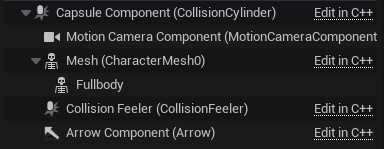
The base MotionCharacter has the core character, ability, camera, movement, and collision components. Add the applicable presentation meshes.
- Select the inherited
Meshcomponent. - Assign the headless character mesh.
- Assign an Animation Blueprint with
MotionAnimInstanceas its parent. - Add a skeletal mesh component below
Mesh. - Assign the full-body character mesh to the new component.
- Assign an Animation Blueprint that copies the parent pose.
The Animation Blueprint can also implement InitializeWithAbilitySystem. The Gameplay Tag Property Map connects Motion state tags to Blueprint variables.
Set visibility for the two meshes:
| Mesh | Cast Shadow | Owner No See | Hidden Shadow |
|---|---|---|---|
Default Mesh | false | false | false |
| Full-body mesh | true | true | true |
Set the default mannequin mesh transform:
- Set
Meshlocation Z to-90. - Set
Meshrotation Z to270.
Set the camera offset
- Select the Motion Camera Component.
- Set
Camera Target OffsettoECA_FirstPerson.
Add movement components
Add the applicable Motion components:
- Walking Component for movement
- Jumping Component for jump
- Crouching Component for crouch
- Sprinting Component for sprint
- Breathing Component for idle camera movement
- Movement Sound Component for footsteps
Set up input
In Class Defaults, select the Motion input assets. Duplicate supplied input assets into project content before you change them.
Adjust project settings
- Open Project Settings.
- In
Engine > Input, setDefault Input Component ClasstoMotionInputComponent. - In
Project > Maps & Modes, select the project GameMode. - Set its pawn to the new Motion character.
- Set its player controller to
MotionPlayerController. - Start PIE and verify movement, camera, and input behavior.