Appearance
Create a custom ability
Use this procedure to create a dash ability with the Gameplay Ability System in Motion 1.6.
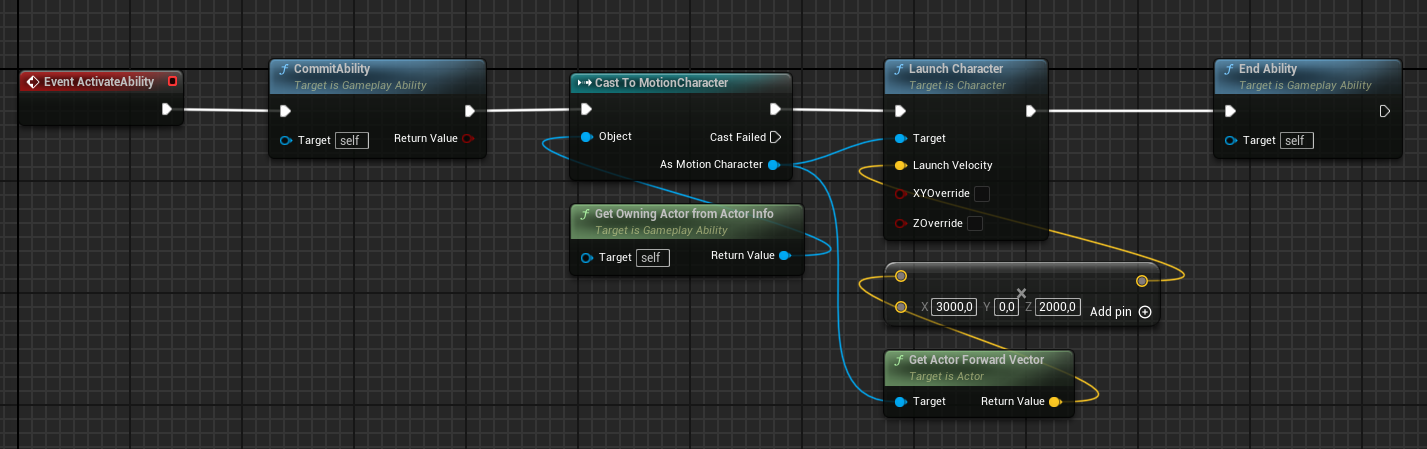
Create the Gameplay Ability Blueprint
- Create a Blueprint with the
Gameplay Abilityparent class. - Implement
ActivateAbility. - Before
CommitAbility, add project conditions that can prevent activation. - Call
CommitAbility. - Add the dash logic.
- Call
EndAbility.
The GameplayEffect in Cost Gameplay Effect Class handles the ability cost.
Add the ability trigger
- Open Class Defaults for the ability.
- Add an entry to
Ability Triggers. - Set
Trigger TagtoInputTag.Dash. - Set the applicable
Trigger Type. - Save the ability.
Set up ability input
- Create an Input Action.
- Duplicate the supplied Input Mapping Context into project content.
- Add the Input Action to the duplicated mapping context.
- Assign an input key.
- Assign the duplicated mapping context to the character Blueprint.
Keep project changes in the duplicate. A Motion update can replace supplied plugin assets.
- Duplicate
IC_Defaultinto project content. - Open the duplicated
MotionInputConfig. - Add the ability to
Tagged Ability Actions. - Assign
InputTag.Dashto the action. - Assign the duplicated config to the character.
- Save the assets.
- Start PIE and activate the dash input.
See the Unreal Engine Gameplay Ability System documentation for more information.