Appearance
Duplicate the configured Motion character
Duplicate the supplied Motion 1.6 character before you change it. A Motion update can replace the supplied Blueprint.
Duplicate the character
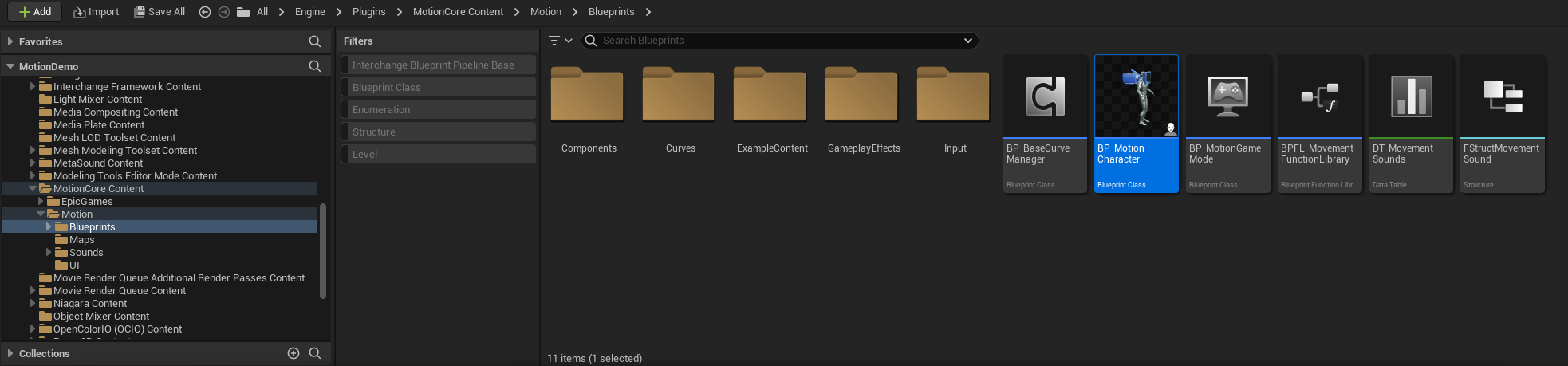
- Open the Content Browser.
- Select Settings.
- Enable
Show Engine ContentandShow Plugin Content. - Open
Plugins\MotionCore Content\Motion\Blueprints. - Find
BP_MotionCharacter. - Drag it to the project Content folder.
- Select Copy here.
- Rename the copy, for example,
B_MyGameCharacter.
Create a GameMode
- Right-click in the Content Browser.
- Select
Blueprint Class. - Select
Game Mode Base. - Name the new GameMode, for example,
B_MyGameGameMode. - Open the GameMode and select
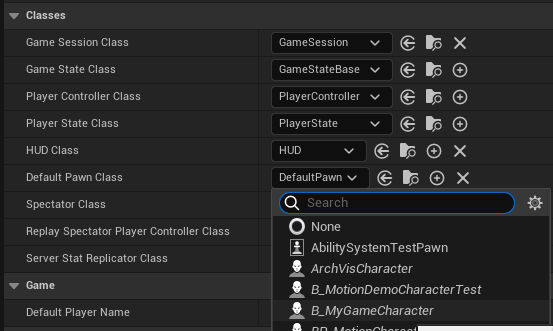
Class Defaults. - Set
Default Pawn Classto the character copy. - Set
Player Controller ClasstoMotionPlayerController.
Set the default GameMode
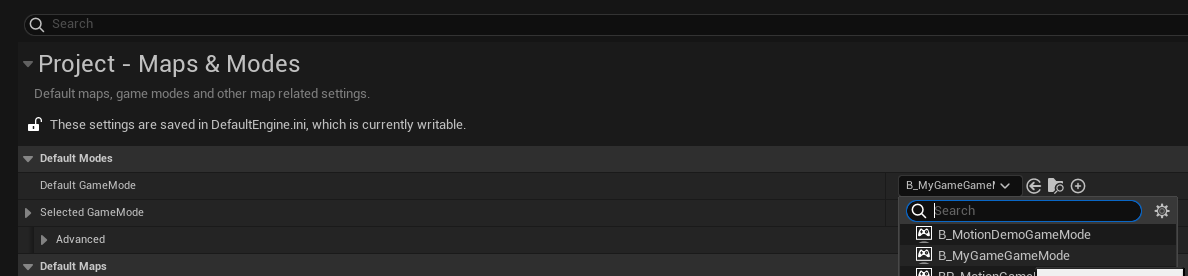
- Open Project Settings.
- Select
Maps & Modes. - Set
Default GameModeto the new GameMode.
Set up the Motion input component
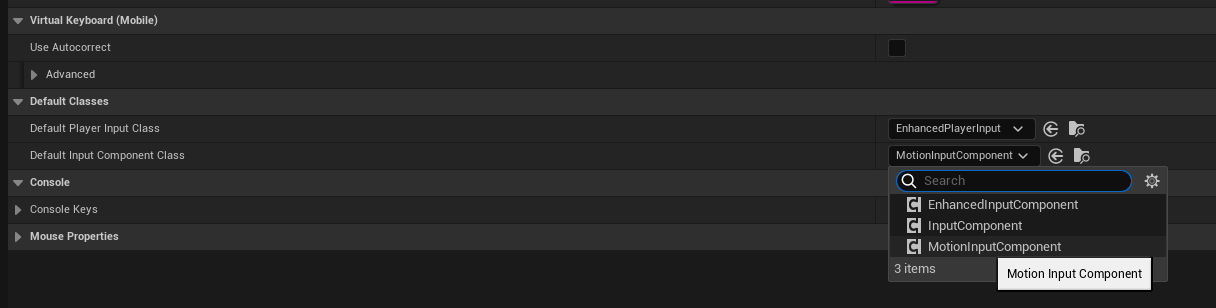
- In Project Settings, select
Input. - Set
Default Input Component ClasstoMotionInputComponent.
Verify the result
- Start PIE.
- Make sure that debug information appears.
- Make sure that the breathing curve moves the camera.
- Move the camera with the mouse.
- Walk with
WASDor a controller. - Jump, crouch, and sprint with the configured inputs.